GuideSite information
Xbox Game Pass: Library and Platform Compatibility
How Xbox Game Pass works as a subscription service, what a rotating game library means in practice, and platform and device compatibility to check.
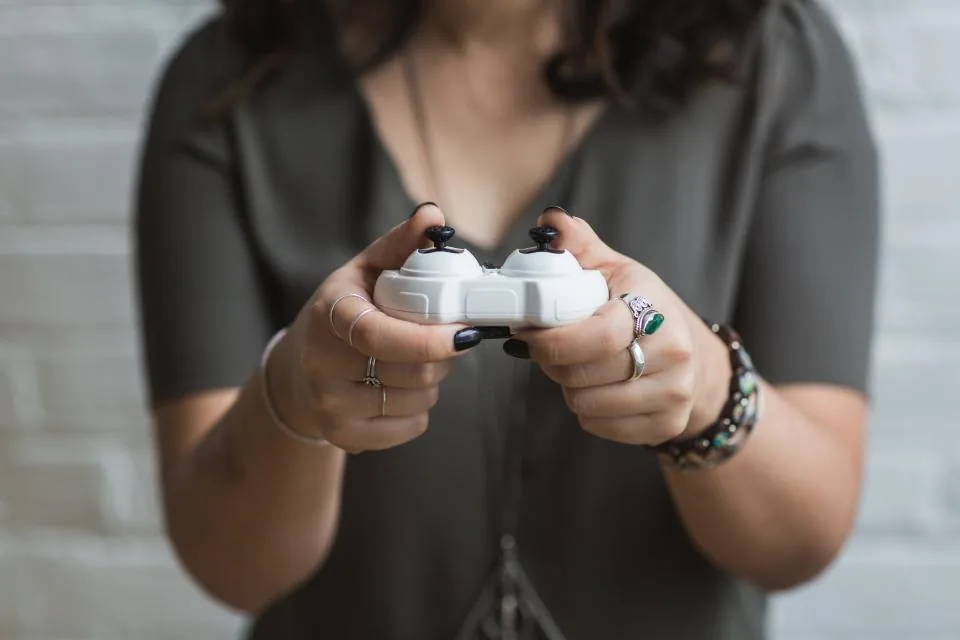
Xbox Game Pass is Microsoft's subscription service for games, built around a rotating library rather than individual purchases. Because it spans consoles, PC, and cloud streaming, understanding what "compatibility" actually means across those platforms is often more useful than focusing on which specific games are currently included, since the lineup changes regularly.
The subscription model in plain terms
Instead of buying games individually, a Game Pass subscriber pays a recurring fee for ongoing access to a library of titles that Microsoft rotates over time, adding some games and removing others on its own schedule. This model shifts the value proposition from "own this one game forever" to "have access to a changing catalog for as long as you subscribe," which suits people who like trying a wide range of games more than people who want to build a permanent, curated collection.
How the library actually rotates
Games join and leave the Game Pass library on a schedule set entirely by Microsoft and its publishing partners, and neither the timing nor the specific titles involved at any given moment are things a static guide can reliably report. If a particular game's Game Pass availability matters to you, checking the official Xbox app or website directly, at the time you're deciding whether to subscribe, is far more reliable than any third-party summary.
Platform compatibility: console, PC, and cloud
Game Pass subscriptions have historically spanned separate but related access modes: play on an Xbox console, play on a Windows PC, and stream games through cloud infrastructure to devices that wouldn't otherwise run them, including some mobile devices and smart TVs with the right app or browser support. Not every subscription tier necessarily includes every mode, and not every game in the library is guaranteed to support cloud streaming even if it supports console and PC play. Before assuming a device will work, it's worth checking Microsoft's current documentation for exactly which access modes your subscription tier includes.
Device and account requirements to check
- A stable internet connection is required for cloud streaming, and for verifying your subscription status even when playing installed titles.
- Cross-save support, letting you continue progress between console and PC, varies by individual game rather than being guaranteed across the whole library.
- Controller support for cloud streaming on mobile or browser depends on the device and the specific game's control scheme.
- Storage requirements for installed games are set per title and can be substantial for larger releases.
How this differs from buying individual keys
A subscription and a one-time game key solve different problems. A key gives you permanent ownership of one specific game once activated, while a subscription gives you temporary access to whichever games are currently in the rotating library. If a game leaves the library, subscribers generally lose access to it unless they buy it separately, which is worth weighing against the lower up-front cost of a subscription. For more on the day-to-day experience of using the service once you're subscribed, see our companion piece on Game Pass and the subscriber experience.
Family and multi-device considerations
Because Game Pass is tied to a Microsoft account, subscribers using multiple devices should check current account and family-sharing terms directly from Microsoft, since these policies are set and updated by the company and aren't something this guide can state reliably on their behalf.
Input and accessory compatibility
Playing on console generally means using a standard console controller without much to think about, but cloud streaming and PC play open up more variables. A browser-based cloud session might support a connected controller, touch controls on a compatible mobile device, or, for some titles, mouse and keyboard, but exact support again depends on both the device and the individual game. Bluetooth controller pairing, browser compatibility, and minimum device specifications are all worth checking against Microsoft's current documentation if you're planning to rely on cloud play as your main way of accessing the library.
Downloading versus streaming: two different experiences
On console and PC, games are typically downloaded and installed locally, giving you the standard performance of running the game natively, at the cost of storage space and download time. Cloud streaming trades that local install for instant access on a wider range of devices, at the cost of depending entirely on your internet connection's speed and stability. Some subscribers use a mix of both, streaming to try a game quickly and downloading titles they end up playing regularly, which is a reasonable way to get a feel for whether a given device suits the service.
Frequently asked questions
Do I keep games after canceling? Generally no; access to library titles depends on an active subscription, though any games you separately purchased remain yours.
Does cloud streaming need a powerful device? Not for the device itself, since the game runs on Microsoft's servers, but it does need a reasonably stable internet connection.
To compare this against Xbox's broader online service, read our guide on Xbox Live's online features. For the complete list of topics, see the AfterCharge Keys home page.